The useful bit
Return to the account that holds your finds and credits, check it on another device and sign out when you finish.
Keep your finds with the right account
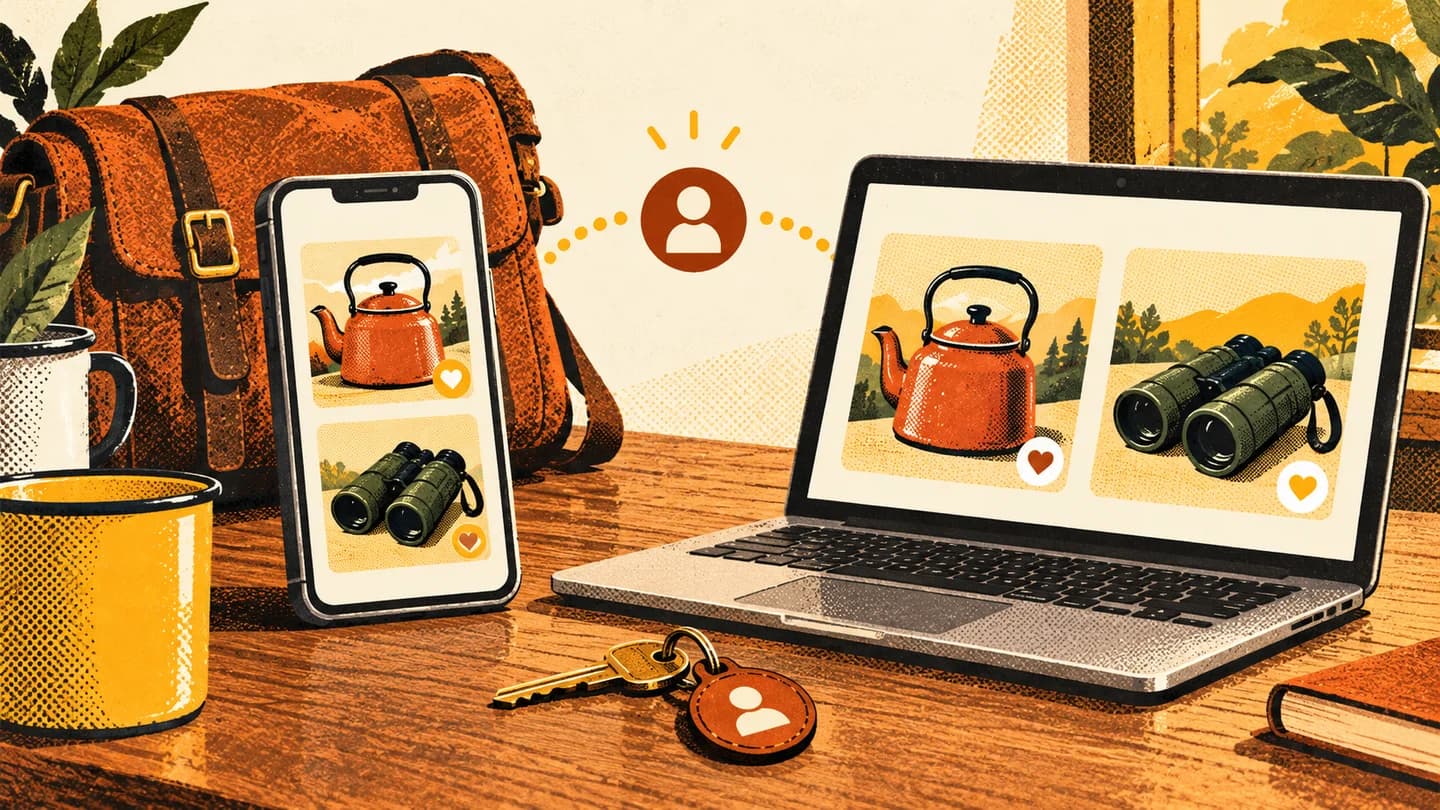
Bargain Bandit keeps real saved finds and your credit balance with your account. Opening the site on a second phone does not require a second registration or another purchase. The important detail is using the same email address and sign-in method as before.
Sign back in
- Open the app and choose Your account & privacy in the footer. If you are signed out, choose Already have an account? Sign in.
- Enter the email address and password you originally used. Show lets you check the password on screen; Hide conceals it again.
- If you originally used Google or Apple, use the matching Continue with button when that provider is offered.
- Press Sign in and wait for the app to open. If the page says it is connecting to the account service, wait for that to finish.
- Open My finds and My credits to confirm you are looking at the expected records before starting a paid scan.
If your finds seem to be missing
Check the account before trying to recreate the work.
- Open Your account & privacy and compare the displayed email with the one you normally use.
- Check whether you used an email/password account or a provider button on the original device.
- Look in My finds for completed work; an unfinished scan may still need its recovery flow.
- Avoid buying more credits merely because a different account has an empty balance.
Sign out or switch accounts
- Finish checking any scan already in progress.
- Open Your account & privacy and choose Sign out.
- Wait for Bargain Bandit’s home page. If Sign-out failed appears, try again; do not assume the account closed.
- To use a different account, open the app and follow Sign in with that account’s own details. Check its identity and records before scanning.